PeopleImport Version 1.0
Getting Started Guide

Last Revised October 3, 2006.


GETTING STARTED USING PeopleImport 1.7

PeopleImport Purpose and Usage

PeopleImport has been designed to be the ultimate importer of salesforce.com Leads, Contacts and Accounts. Working around traditional list challenges, PeopleImport allows for data to be imported into all these tables from a single data source in a single import operation. In addition, the data is compared against the incoming data in a 100% customizable fashion. You can decide to import into and check against Leads or Contacts/Accounts.

The following outlines installation and usage of PeopleImport. Support information and contact information for the developers, CRMfusion Inc. is located at the bottom.

Back to Top

Installation of PeopleImport on your local Computer

System Recommendations: PeopleImport has been designed to run on most current Pentium computers running with Windows 2000 or greater. We suggest the user have a minimum of 1 gigabyte RAM if they expect to process large lists. Extremely large list customers (or those comparing against giant salesforce.com databases may consider upgrading to the maximum amount of RAM their operating system supports.

The PeopleImport GUI has been designed for computers running at least 1024x768 resolution.

1. Install Microsoft .NET Framework Version 2.0 Redistributable Package (x86) prior to installation of PeopleImport. If you do not currently have this installed on your computer, the PeopleImport installation wizard will automatically provide the link for download.

2. Network Settings: In most cases no network settings have to be adjusted in order to use the PeopleImport on your local computer. If you do have problems logging into the PeopleImport (and you can login to salesforce using the same login ID and Password) you should provide the following information to your network administrator.

Communications:
All communication is done to the salesforce servers (salesforce.com) and an initial authentication is done to the CRMfusion authentication servers (crmfusion.com) via SSL on port 443. If you are bypassing salesforce.com on your proxy, you will have to bypass crmfusion.com also in order to authenticate.

Proxy Settings:
Proxy settings can be accessed by selecting the “Proxy Settings” button on the login screen. These settings are global and will work for your communications to salesforce and to the CRMfusion authentication servers.

3. You can install 1.0 over existing versions (should not need to uninstall and re-install). Click either the .exe or the .msi file in the installation ZIP file to start the installation procedure.

4. PeopleImport will be loaded on your computer under Program Files in your C:/Program Files directory, creating a sub-directory called PeopleImport. Sub-directories will be created for the PeopleImport Log Files, Restore Files, etc. Also created on your desktop and under the Windows start button will be a PeopleImport Launch icon.

5. Login using your salesforce.com user ID and Password (you are logging into the salesforce.com API at the data center) .

Users DO NOT have to have the System Administrator profile on salesforce.com to use PeopleImport, comparisons will be done only against Leads, Contacts and Accounts that the user has the rights to see according to their security profile.

PeopleImport Usage

The PeopleImport Options dialog box launch button is in the lower left hand side of the interface.

Proxy control, default mapping types, auto login control and more can all be found here.

Back to Top


PeopleImport Screen #1 - Creating Mappings
(Click image for larger)


Selecting the incoming data source
from PeopleImport Screen #1


Setting match operation types


Once completely mapped in Screen #1
the user can save for easy recall later


PeopleImport Screen #1
Creating Mappings

The first job in starting a PeopleImport import operation is to select the incoming data file (XLS, CSV, MDB or UDL (a high end database connector like ODBC) and the corresponding database table worksheet that you would like to import by pressing the "Use" button. Once loaded and selected, the number of incoming data records should be displayed in red.

The next step is to decide what objects (Leads and / or Contacts) you would like to import / update into. Using drag and drop, match up the fields in the incoming data file to the appropriate feilds in the Lead and/or Contact record (as applicable).

After having successfully dragged and dropped a field from the data source to its corresponding field in salesforce.com you will notice that PeopleImport allows you to select the operation type.

For each mapping you can decide among 4 primary types of operations.

1) Insert - Should this field be inserted into salesforce.com when creating new records? (99% yes)

2) Update - When PeopleImport finds records that are duplicates of the incoming data, should the incoming data in the data file over write the value already loaded in salesforce.com?

3) Update only if blank - Identical to #2 but the update will only happen if the found record does not contain information in the field.

4) Merge - For updates, PeopleImport can merge many field types including multi-select lists, long test area fields and certain boolean operations.

Once all of the fields in the incoming data source have been mapped to the Lead and/or Contact you can move to Screen #2 in the wizard by pressing Next --> or the funnel icon in the left task bar.


PeopleImport Screen #2 - Deciding what to
compare incoming data to

(Click image for larger)

PeopleImport Screen #2
Deciding what to compare incoming data to

Screen #2 simply allows the user to decide on WHICH records already loaded in salesforce.com should be used to compare against the incoming data file.

Most small and mid sized salesforce.com customers will simply be able to choose All and All. A larger customer with hundreds of thousands of Leads and Contacts will want to narrow the search range down in order to save time.

For example, a global company marketing manager may decide to compare a UK based trade show list against only that sub set of Leads and Contacts in the UK as opposed to the global database (the chances of successful matches outside the geography would be low anyway's).

We have performed numerous tests with 100,000 incoming data rows being compared against 100,000 Leads and 100,000 Contacts, the operation will complete the searching for duplicates and display a results screen in about 6 minutes on a fairly strong computer.


PeopleImport Screen #3 - Building Match Steps to compare
incoming vs existing data
(Click image for larger)


Use match steps like a filter, customize with as
many Lead and Contact matches as required.


Assigning matches to Campaigns and creating
Tasks for the Lead or Contact owner


Looking at PeopleImport options for the
"Final Match Condition"


PeopleImport Screen #3
Building Match Steps to Compare Incoming vs Existing SFDC Data

Step #3 is where the user decides on how the incoming data will be compared against the Leads and/or Contacts already loaded in salesforce.com. The user can select from a near unlimited (within reason) number of Lead and Contact matches and they can be performed in any order. The Match Steps act as a filter on the incoming data, if it successfully matched in one of the Steps, then the updates from Screen #1 are processed.

Use the "Add Lead Match Step" or the "Add Contact Match Step" buttons to add additional steps into the process.

Once a step is loaded it can be moved up and down in the order of the match sequence using the "Move Up" and "Move Down" buttons as well as deleted with the "Delete Step" button.

In order to actually design the criteria for the matching of the incoming data against the Lead or Contact (as selected) begin by pressing the "Add Match Condition" button, this will display a list of the available fields that you can match on (any field that was mapped in screen #1 essentially). Select the field that you would like to match on and then select the Mapping Type to match that field with. PeopleImport gives many different options including Exact, Fuzzy, Cleaned Account Name, Relaxed Address match etc. For full details on the available matching types see the section later in this document.

After completing the Matching Conditions the user is then given the opportunity to also assign any records that are successfully filtered out via the Matching Condition and assign them to a Campaign and/or create a task for the owner of the Contact or Lead.

The final step in PeopleImport Screen #3 is always the "Final Matching Conditions" as stated earlier the multiple matching conditions act as a multi layer filter. The "Final Matching Conditions" is essentially the question of what to do with the records that fall through all the previous layers of the filter. The user is given three choices:

1) Create a new Lead, this option will take all the remaining records (the ones not caught by previous filter layers) and create new Leads for them.

2) Create a new Contact, this option has three sub options:

  • Create a new Contact in a New Account automatically
  • Search for an existing Account that matches the incoming data, in the hopes to find the Account where the Contact should be created before creating a new one
  • Do nothing, just report them in the final results file as being unmatched data

Now that the incoming data comparison to the existing salesforce.com data has been established, proceed to the next screen.


PeopleImport Screen #4 - Additional Tasks and Campaigns
(Click image for larger)


PeopleImport Screen #4
Additional Tasks and Campaigns

On Screen #4 in PeopleImport the user is given one additional chance to finish some last minute work with Campaigns and Task creation. They are given the options to assign:

1) A global campaign setting for any record that was imported or updated but NOT mapped to a campaign in one of the matching steps from Screen #3.

2) A global setting to set the Task for any record that was imported or updated but NOT assigned a Task in one of the matching steps from Screen #3.

3) One additional chance to add a SECOND or ADDITIONAL task to every record that was imported or updated in the process regardless if it already had a task assigned to it in one of the previously executed Matching steps.


PeopleImport Screen #5 - Analyzing Results before
Committing to Import
(Click image for larger)


The PeopleImport View Button lets you view
the objects that match before importing to
the smallest detail


If your Screen #5 results look great, save your scenario for easy recall later, all of your matching's will be preserved.

PeopleImport Screen #5
Analyzing Results before Committing to Import

Begin the process of analyzing the incoming data against the data in salesforce.com by pressing the "Find Matches" button. This will begin the process of downloading the Leads and/or Contacts from salesforce.com that you selected to compare the incoming data against earlier in Screen #2. Once downloaded, the progress bar will indicate the comparison of the data source and salesforce.com will take place on your local computer. Dependant upon the size of both the incoming data vs the size of the data in salesforce.com this comparison could take up to 10 minutes (for huge #'s).

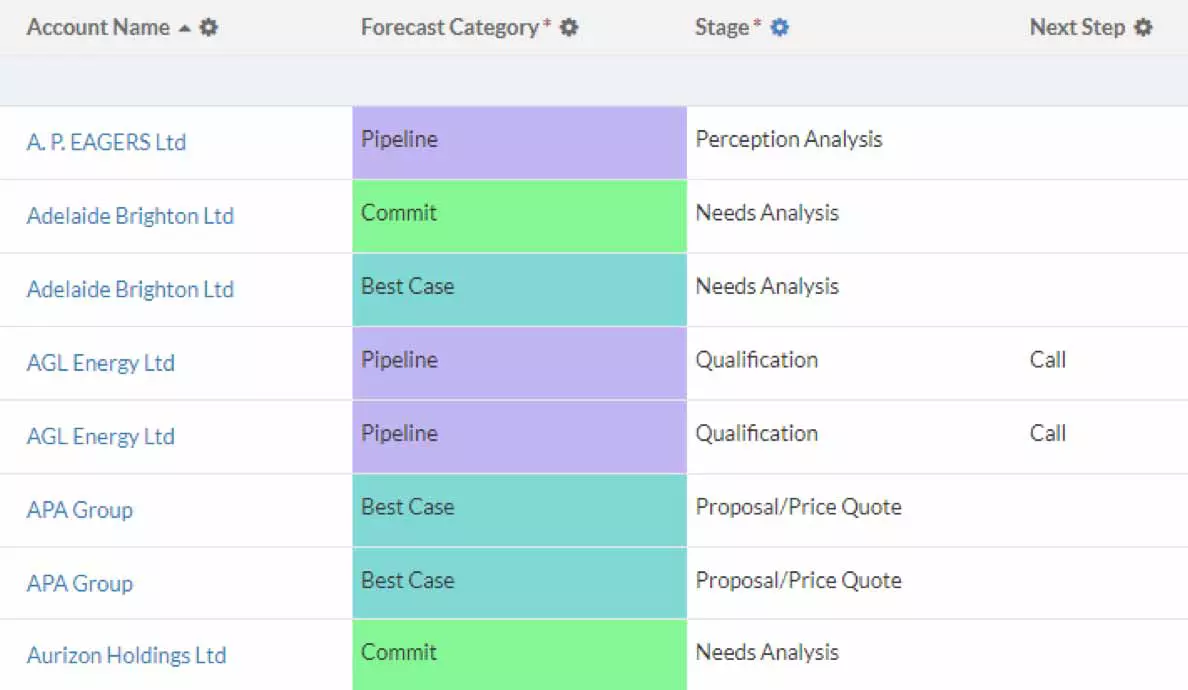
Once completed, a grid as shown in the sample picture (left) will be displayed. Initially it is shown in the same order as the incoming data set. You can scroll down through the results screen seeing where and what would happen to each incoming data record. Did it match a Lead or a Contact? Did it do an update or create a new? Did it create a Contact in an existing Account? The results screen has all this information.

You can also use drag and drop to drag column headers into the gray zone above the grid to develop sorts and groupings to make the data easier to understand.

Wherever there is an update of an existing record you can use the plus sign indicator to open the tree view and see the values of the salesforce.com fields that matched. They are indicated by the sf_ prefix in the column headers.

If you would like you can click on the blue URL MatchID (Lead or Contact) or ParentID (for Contacts only) and the record will be displayed in a PeopleImport dialogue box as shown on the left.

Once satisfied that the proper records were discovered and that you want to perform the import, select the operations you would like to perform by placing a check mark in the control box. Check All and Check None buttons are available.

When all selections have been made, "Import Checked Objects" will perform the import operation without further user involvement.

Screen #5 is exportable to get a detailed report of the match, this can be done even without performing the final import.

Import capabilities are crippled in the trial version but the results screens can still be built and exported.


Back to Top

PeopleImport Mapping Types Explained

The Nickname list allows the deduplication tool to see Bill, William, Billy etc as potential duplicates of each other. This list is also customizable by the end user for localization or even in theory for non contact substitution on any field by replacing the nickname list with synonyms.

With relaxed address match, all of the following seen as the deduper in the lowest common denominator of "123 Pavillion":

In addition to the already covered mapping types there are also options that can be applied to many of them. PeopleImport provides for three different options to be augmented to the appropriate types of mappings. The available options are:

Type Description Mapping Types
Fuzzy
Phonetics engine capable of analyzing words for how they sound when pronounced. Through a technique of removing vowels and analyzing the remaining consonants the fuzzy engines works very well for matching fields with spelling mistakes. Cleaned Account Name
Exact
FirstName

Transpose

The transpositional engine allows for fields to appear to be duplicates even if the have differences in their word order. For example Jones, Smith and Jackson will appear to be a duplicate of Jackson, Smith and Jones.

Cleaned Account Name
Exact
FirstName
Street
Alpha Clean

The alpha cleaner extends some of the capabilities of the account name cleaner to other fields for matching. The alpha cleaner is used when you know you only have ascii (north american) data and you would like to ensure that the only characters that are analyzed are the 26 characters of the english alphabet and the numbers 0-9. Any other character that the field may contain will be ignored and not seen by the deduplication matching algorithms.

Cleaned Account Name
Exact
FirstName
Numeric
Street
Zip 5 and 9

Back to Top

***TECHNICAL SUPPORT***

1. Logging a Technical Support Case with CRMfusion, Inc.

If you need to contact CRMfusion technical support you can either email support@crmfusion.com which will automatically log a case on our salesforce.com instance.

or

If you have been enabled as a self-service user you can go to our support center at http://www.crmfusion.com/peopleimport and access our solutions database to find the answer to your question and/or log a case directly to our salesforce.com instance.

If you need to be enabled as a self-service user, please submit a request by emailing support@crmfusion.com.

NOTE: Be sure to add support@crmfusion.com as a trusted sender on your email client, and ideally make sure that emails can also be received from salesforce.com.

2. Contacting Support by Telephone

The best way to reach us is by email or internet; however, if you prefer to contact us by phone you can reach us toll-free at (800) 961-8205.

WE STRIVE TO HAVE ALL ISSUES RESPONDED TO WITHIN A 12 HOUR PERIOD, ALTHOUGH MOST ISSUE ARE RESOLVED SIGNIFICANTLY QUICKER.

CRMfusion Inc.

www.crmfusion.com